I’m Kinected

I’ve been pretty excited about Project Natal Kinect (sorry, I still like the old name) since I first heard about it.  I’ve been watching demo videos for months and even early ones looked promising.  Deep down though I’ve feared that it could turn out to be as bad as the Sega Activator.  Yesterday Microsoft released Kinect and now we can all see it in action.

I thought about pre-ordering one but ultimately passed on it.  Esther and I decided it would make a nice family holiday present.  Let’s just say that Christmas came a bit early this year.  This morning a friend mentioned on twitter that he’d found one at Walmart.  He inspired me to take a chance and see if the Target down the road from my house would have one available.  There were two on the shelf so I bought one along with a copy of Kinectimals to try to keep Nadia (my one year old) entertained.  After a long day at work we finally got to try it out.  So how’d Microsoft do?

Initial setup was REALLY easy.  I have one of the new Xbox 360 S consoles so all I needed to do was connect the device to the Kinect port on the back of the console.  There’s also an included power adapter to connect it to a USB port on the older consoles.  Once the device was connected and the console turned on some drivers were installed and it automatically took me through a configuration/tutorial.

Navigating through menus and selecting items typically involves holding some position for a few seconds.  Although the delay seemed like it could be a bit shorter it was never terribly annoying.  What is annoying though is that Kinect isn’t as deeply integrated as it should be.  Instead of controlling the Xbox dashboard directly there’s this “Kinect Hub” that’s accessed either by waving at the device or with a voice command.  Both methods have worked reliably and about equally well.  Once inside the hub there’s a limited subset of actions that can be taken.  We can play whatever is in the tray, watch ESPN, listen to last.fm, edit our avatars, but not much more.

Voice commands work really, really well.  In some cases they’re easier than gestures.  The biggest problem with the voice commands is that they don’t go deep enough.  Aside from saying “Xbox………Kinect” to access the Kinect Hub they only work at the top level of the hub (with a few exceptions like last.fm).  Once you enter a section you’re forced to use gestures…even with videos.  That brings me to my biggest complaint about the system.

The only thing I’ve run into that’s truly aggravating, maddening even, is that there are no voice controls for most video playback.  Using voice control for video playback was one of the biggest selling points for me and was featured pretty in some of the demo videos.  Given how accurate the voice recognition system is it’s really discouraging that this feature is missing and I really hope that there’s another console update soon to address this.  I also wish that the voice command for opening the tray was available when there’s a disc in there.  It seems odd that it’s only enabled when the tray is empty.  Maybe I’d like the tray to be open when I get to the console.

As far as the gaming experience goes I’ve only played Kinect Adventures and Kinectimals.  Both are very Wii-esque but they’re far more engaging and enjoyable.

Esther and I both got several hours of entertainment from Kinect Adventures.  Despite the Wii-like nature of the mini-games the game play experience itself is completely different and unique.  With Kinect we’re not limited to waving a wand at the TV.  Instead we get a full-body workout where we swing our arms and legs around, walk, jump, and stretch.  With Kinect there’s no worry about throwing a remote through the television or a balance board complaining because you pushed too hard.

Kinectimals is incredibly cute.  Many scenes were met with an “Awwwwww” from Esther and/or happy shrieks from Nadia who really seemed to enjoy watching.  Although Kinectimals does engage the full body through actions like jumping and spinning most of the time (so far) has really just been trying to “throw” random objects at other random objects while a tiger kitten runs around.  The throwing mechanics didn’t seem particularly accurate but I managed to adjust to it pretty well.  I can’t say that it kept my attention all that long but I guess I’d probably enjoy it a bit more if I were a five year old girl which is what it really seems to be targeting.

Overall I think Microsoft really hit the mark with Kinect.  While it does have some problems the majority of them seem addressable (and I hope Microsoft does it soon).  At this point it’s certainly not ready for every type of game.  I struggle to see how some types of games would work with Kinect (shooters in particular – Playstation Move and Wii seem much more suitable for these) but if you’re looking for the types of titles currently available it’s definitely a worthy addition.  I see plenty of room for real-time strategy and fighting games in the future but it’ll be fun to see how this product evolves.

Building Strings Fluently

Last night I was reading the second edition of Effective C#.  Item 16 discusses avoiding creation of unnecessary objects with part of the discussion using the typical example of favoring StringBuilder over string concatenation.  The tip itself was nothing new, StringBuilder has been available since the first versions of the .NET framework, but it did remind me of something I “discovered” a few months ago.

Back in late July Esther and I took a week vacation.  We rented a two story loft on a marina in southwest Michigan.  It was incredibly relaxing and apparently more refreshing than I realized at the time.  When I returned to the office the following Monday I was looking at a block of code that was doing a lot of string concatenation and decided to rewrite it to use a StringBuilder instead.  When using a StringBuilder I follow the familiar pattern seen in most books and even in the MSDN documentation:

var sb = new StringBuilder();
sb.Append("Hello, Dave");
sb.AppendLine();
sb.AppendFormat("Today is {0:D}", DateTime.Now);
Console.WriteLine(sb.ToString());

For some reason though as I was writing code this particular Monday I noticed something that I hadn’t noticed before.  I realized that StringBuilder, a class I’ve been using for nearly 10 years, implements a fluent interface!  All of those familiar methods like Append, AppendFormat, Insert, Replace, etc… each return the StringBuilder instance meaning we can chain calls together!

Armed with this new knowledge I started thinking about all the places that code can be simplified just by taking advantage of the fluent interface.  No longer do I need to define a variable for the StringBuilder and pass it to something.  Instead, I can create the instance inline, build it up, then pass it along.

Console.WriteLine(
		(new StringBuilder())
		.Append("Hello, Dave")
		.AppendLine()
				.AppendFormat("Today is {0:D}", DateTime.Now)
		.ToString()
);

Hoping I hadn’t been completely oblivious for so long I hopped over to the .NET 1.1 documentation and what I found was astonishing – this functionality has been there all along.  I asked a few trusted colleagues if they knew about it and incredibly none of them had realized it either!  How did we miss this for so long?

Unlocking Configuration Sections in IIS 7.x

One of our administration applications uses Windows authentication so we can manage some Windows services.  In the past we’ve simply changed the authentication method in IIS Manager and moved on but when as we upgraded our development workstations to Windows 7 and IIS 7.5 we started seeing the error:

HTTP Error 500.19 – Internal Server Error

The requested page cannot be accessed because the related configuration data for the page is invalid.

The Detailed Error Information section gave a bit more information:

This configuration section cannot be used at this path. This happens when the section is locked at a parent level. Locking is either by default (overrideModeDefault=”Deny”), or set explicitly by a location tag with overrideMode=”Deny” or the legacy allowOverride=”false”.

The Config Source section was kind enough to narrow down the problem to the <authentication> element.  Since we need Windows authentication for service administration simply switching back to anonymous authentication wasn’t an option.  We really needed to unlock that section.

The page linked from the Links and More Information section has a ton of information about each of the status codes along with links to other knowledge base articles for more details about error conditions.  According to the knowledge base HTTP Error 500.19 has nine possible causes.  This particular issue is listed as issue 9 and is described in detail on IIS.net.

In short, IIS 7.x locking is controlled primarily by the configuration found in the applicationHost.config file located in the %windir%\system32\inetsrv\config\ folder.  Unlocking the section is a matter of moving the security/authentication section to a new location element and setting the overrideMode attribute to “Allow” so it is unlocked for all applications.  Alternatively, the security/authentication information can be duplicated into a new location element with a path attribute identifying a specific application to unlock it for just that application, leaving it locked for all others.

I opted for the later option and simply added a new location element.  Since I was not only enabling Windows authentication but also disabling anonymous authentication I actually had to unlock both.  When I was done my new location element looked like this:

<configuration>
    <!-- Existing Configuration Excluded -->
    <location path="Default Web Site\MyApplication" overrideMode="Allow">
        <system.webServer>
            <security>
                <authentication>
                    <anonymousAuthentication enabled="false" />
                    <windowsAuthentication enabled="true" />
                </authentication>
            </security>
        </system.webServer>
    </location>
</configuration>

With that in place the error disappeared and I was able to use the application as expected.  Unfortunately I did have some trouble actually editing applicationHost.config since I’m running Windows 7 on a 64-bit system and I needed to edit the file with notepad rather than my trusty Notepad++.

10/29/2010 Update:

A colleague pointed me to the “Feature Delegation” icon at the root (computer) level of IIS Manager (Thanks, Ryan).  Clicking into the Feature Delegation page shows a listing of features and their current override setting.  With few exceptions each of the features can be changed to Read/Write, Read Only, or Not Delegated.  There’s also Reset to Inherited option to remove any customization.

Note: Each feature’s context menu includes a “Custom Site Delegation” option that allows the settings to be changed per site (i.e.: Default Web Site) but doesn’t go as far as individual applications.

Unlocking the sections via the Feature Delegation page would certainly have been easier than editing applicationHost.config directly and should be suitable for most development environments. I think I’d probably stick to editing the configuration file for a production server though just for that added layer of protection.

December Indy TFS Meeting

Mark your calendar for the second meeting of the Indy TFS user group on December 8, 2010.  I will be presenting some tips for improving the TFS version control experience.  In particular we’ll examine enhancing version control with the TFS Power Tools, replacing the default compare and merge tools, tracking changesets, and integrating some project management features into the version control workflow.

Location

Microsoft Office
500 East 96th St
Suite 460
Indianapolis, IN 46240
[Map]

Doors open at 6:00 PM with the meeting starting at 6:30.  Pizza and drinks will be provided.

Register at https://www.clicktoattend.com/invitation.aspx?code=151824.

Which Files Changed?

One of the complaints I’ve heard about TFS 2010 version control is that getting latest doesn’t show a listing of what was changed. This is untrue. TFS does indeed show such a listing it’s just not as obvious as in other version control systems.

After getting latest, jump over to the output window and select the “Source Control – Team Foundation” option from the “Show output from:” menu. The output window will then display the action taken and file name for each affected file.

It would be nice if TFS would present this information in a sortable/filterable grid format instead of relying on the output window but having the simple listing is typically more than enough. The output window itself is searchable so if you’re looking for changes to a specific file or folder just click in the window and press Ctrl + F to open the find dialog.

Now the next time someone claims that “TFS doesn’t show me which files changed!” you can tell them to check the output window.

LINQed Up (Part 4)

This is the fourth part of a series intended as an introduction to LINQ.  The series should provide a good enough foundation to allow the uninitiated to begin using LINQ in a productive manner.  In this post we’ll look at the performance implications of LINQ along with some optimization techniques.

LINQed Up Part 3 showed how to compose LINQ statements to accomplish a number of common tasks such as data transformation, joining sequences, filtering, sorting, and grouping.  LINQ can greatly simplify code and improve readability but the convenience does come at a price.

LINQ’s Ugly Secret

In general, evaluating LINQ statements takes longer than evaluating a functionally equivalent block of imperative code.

Consider the following definition:

var intList = Enumerable.Range(0, 1000000);

If we want to refine the list down to only the even numbers we can do so with a traditional syntax such as:

var evenNumbers = new List<int>();

foreach (int i in intList)
{
	if (i % 2 == 0)
	{
		evenNumbers.Add(i);
	}
}

…or we can use a simple LINQ statement:

var evenNumbers = (from i in intList
					where i % 2 == 0
					select i).ToList();

I ran these tests on my laptop 100 times each and found that on average the traditional form took 0.016 seconds whereas the LINQ form took twice as long at 0.033 seconds.  In many applications this difference would be trivial but in others it could be enough to avoid LINQ.

So why is LINQ so much slower?  Much of the problem boils down to delegation but it’s compounded by the way we’re forced to enumerate the collection due to deferred execution.

In the traditional approach we simply iterate over the sequence once, building the result list as we go.  The LINQ form on the other hand does a lot more work.  The call to Where() iterates over the original sequence and calls a delegate for each item to determine if the item should be included in the result.  The query also won’t do anything until we force enumeration which we do by calling ToList() resulting in an iteration over the result set to a List<int> that matches the list we built in the traditional approach.

Not Always a Good Fit

How often do we see code blocks that include nesting levels just to make sure that only a few items in a sequence are acted upon? We can take advantage of LINQ’s expressive nature to flatten much of that code into a single statement leaving just the parts that actually act on the elements. Sometimes though we’ll see a block of code and think “hey, that would be so much easier with LINQ!” but not only might a LINQ version introduce a significant performance penalty, it may also turn out to be more complicated than the original.

One such example would be Edward Tanguay’s code sample for using a generic dictionary to total enum values.  His sample code builds a dictionary that contains each enum value and the number of times each is found in a list. At first glance LINQ looks like a perfect fit – the code is essentially transforming one collection into another with some aggregation.  A closer inspection reveals the ugly truth.  With Edward’s permission I’ve adapted his sample code to illustrate how sometimes a traditional approach may be best.

For these examples we’ll use the following enum and list:

public enum LessonStatus
{
	NotSelected,
	Defined,
	Prepared,
	Practiced,
	Recorded
}

List<LessonStatus> lessonStatuses = new List<LessonStatus>()
{
	LessonStatus.Defined,
	LessonStatus.Recorded,
	LessonStatus.Defined,
	LessonStatus.Practiced,
	LessonStatus.Prepared,
	LessonStatus.Defined,
	LessonStatus.Practiced,
	LessonStatus.Prepared,
	LessonStatus.Defined,
	LessonStatus.Practiced,
	LessonStatus.Practiced,
	LessonStatus.Prepared,
	LessonStatus.Defined
};

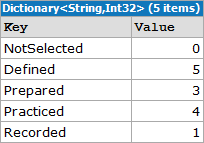
Edward’s traditional approach defines the target dictionary, iterates over the names in the enum to populate the dictionary with default values, then iterates over the list of enum values, updating the target dictionary with the new count.

var lessonStatusTotals = new Dictionary<string, int>();

foreach (var status in Enum.GetNames(typeof(LessonStatus)))
{
	lessonStatusTotals.Add(status, 0);
}
	
foreach (var status in lessonStatuses)
{
	lessonStatusTotals[status.ToString()]++;
}

TraditionalOutput

In my tests this form took an average of 0.00003 seconds over 100 invocations.  So how might it look if in LINQ?  It’s just a simple grouping operation, right?

var lessonStatusTotals =
	(from l in lessonStatuses
		group l by l into g
		select new { Status = g.Key.ToString(), Count = g.Count() })
	.ToDictionary(k => k.Status, v => v.Count);

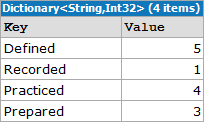
GroupOnlyOutput

Wrong. This LINQ version isn’t functionally equivalent to the original. Did you see the problem?  Take another look at the output of both forms.  The dictionary created by the LINQ statement doesn’t include any enum values that don’t have corresponding entries in the list. Not only does the output not match but over 100 invocations this simple grouping query took an average of 0.0001 seconds or about three times longer than the original.  Let’s try again:

var summary = from l in lessonStatuses
				group l by l into g
				select new { Status = g.Key.ToString(), Count = g.Count() };
		
var lessonStatusTotals = 
	(from s in Enum.GetNames(typeof(LessonStatus))
	 join s2 in summary on s equals s2.Status into flat
	 from f in flat.DefaultIfEmpty(new { Status = s, Count = 0 })
	 select f)
	.ToDictionary (k => k.Status, v => v.Count);

JoinAndGroupOutput

In this sample we take advantage of LINQ’s composable nature and perform an outer join to join the array of enum values to the results of the query from our last attempt.  This form returns the correct result set but comes with an additional performance penalty.  At an average of 0.00013 seconds over 100 invocations, This version took almost four times longer and is significantly more complicated than the traditional form.

What if we try a different approach?  If we rephrase the task as “get the count of each enum value in the list” we can rewrite the query as:

var lessonStatusTotals = 
	(from s in Enum.GetValues(typeof(LessonStatus)).OfType<LessonStatus>()
	 select new
	 {
	 	Status = s.ToString(),
		Count = lessonStatuses.Count(s2 => s2 == s)
	 })
	.ToDictionary (k => k.Status, v => v.Count);

CountOutput

Although this form is greatly simplified from the previous one it still took an average of 0.0001 seconds over 100 invocations.  The biggest problem with this query is that it uses the Count() extension method in its projection.  Count() iterates over the entire collection to build its result.  In this simple example Count() will be called five times, once for each enum value.  The performance penalty will be amplified by the number of values in the enum and the number of enum values in the list so larger sequences will suffer even more.  Clearly this is not optimal either.

A final solution would be to use a hybrid approach.  Instead of joining or using Count we can compose a query that references the original summary query as a subquery.

var summary = from l in lessonStatuses
	group l by l into g
	select new { Status = g.Key.ToString(), Count = g.Count() };

var lessonStatusTotals =
	(from s in Enum.GetNames(typeof(LessonStatus))
	 let summaryMatch = summary.FirstOrDefault(s2 => s == s2.Status)
	 select new
	 {
	 	Status = s,
		Count = summaryMatch == null ? 0 : summaryMatch.Count
	 })
	.ToDictionary (k => k.Status, v => v.Count);

SubqueryOutput

At an average of 0.00006 seconds over 100 iterations this approach offers the best performance of any of the LINQ forms but it still takes nearly twice as long as the traditional approach.

Of the four possible LINQ alternatives to Edward’s original sample none of them really improve readability.  Furthermore, even the best performing query still took twice as long.  In this example we’re dealing with sub-microsecond differences but if we were working with larger data sets the difference could be much more significant.

Query Optimization Tips

Although LINQ generally doesn’t perform as well as traditional imperative programming there are ways to mitigate the problem.  Many of the usual optimization tips also apply to LINQ but there are a handful of LINQ specific tips as well.

Any() vs Count()

How often do we need to check whether a collection contains any items?  Using traditional collections we’d typically look at the Count or Length property but with IEnumerable<T> we don’t have that luxury.  Instead we have the Count() extension method.

As previously discussed, Count() will iterate over the full collection to determine how many items it contains.  If we don’t want to do anything beyond determine that the collection isn’t empty this is clearly overkill.  Luckily LINQ also provides the Any() extension method.  Instead of iterating over the entire collection Any() will only iterate until a match is found.

Consider Join Order

The order in which sequences appear in a join can have a significant impact on performance.  Due to how the Join() extension method iterates over the sequences the larger sequence should be listed first.

PLINQ

Some queries may benefit from Parallel LINQ (PLINQ).  PLINQ partitions the sequences into segments and executes the query against the segments in parallel across multiple processors.

Bringing it All Together

As powerful as LINQ can be at the end of the day it’s just another tool in the toolbox.  It provides a declarative, composable, unified, type-safe language to query and transform data from a variety of sources.  When used responsibly LINQ can solve many sequence based problems in an easy to understand manner.  It can simplify code and improve the overall readability of an application.  In other cases such as what we’ve seen in this article it can also do more harm than good.

With LINQ we sacrifice performance for elegance.  Whether the trade-off is worth while is a balancing act based on the needs of the system under development.  In software where performance is of utmost importance LINQ probably isn’t a good fit.  In other applications where a few extra microseconds won’t be noticed, LINQ is worth considering.

When it comes to using LINQ consider these questions:

  • Will using LINQ make the code more readable?
  • Am I willing to accept the performance difference?

If the answer to either of these questions is “no” then LINQ is probably not a good fit for your application.  In my applications I find that LINQ generally does improve readability and that the performance implications aren’t significant enough to justify sacrificing readability but your mileage may vary.

Upcoming Events in Indianapolis

There are a few interesting software development related events coming up in Indianapolis over the next few weeks.


Indy TFS User Group

Date/Time:
10/13/2010 6:30 PM

Location:
Microsoft Corporation
500 E. 96th St.
Suite 460
Indianapolis, IN 46240
[Map]

Web Site:
https://www.clicktoattend.com/ invitation.aspx?code=151376

The first meeting of the Indianapolis TFS User Group will feature Paul Hacker introducing many of the Application Lifecycle Management tools in Visual Studio 2010.

I’ve been reading Professional Application Lifecycle Management with Visual Studio 2010 and am pretty excited about many of the features.  I hope to use this session to expand upon what is included in the book.

This event is free to attend.  Follow the link to the right to register.

IndyNDA

Date/Time:
10/14/2010 6:00 PM

Location:
Management Information Disciplines, LLC
9800 Association Court
Indianapolis, IN 46280
[Map]

Web Site:
http://indynda.org/

The October IndyNDA meeting will be presented by the group’s president, Dave Leininger.  Dave will be discussing ways to graphically represent complex relationships in data.

Three special interest groups (SIGs) also meet immediately following the main event.  The SIGs were on hiatus last month so I’ll be giving my introduction to dynamic programming in C# talk this month.

IndyNDA meetings are free to attend thanks to the sponsors.  No registration is required.  Regular attendees should note the new location.

Indy GiveCamp

Date/Time:
11/5/2010 – 11/7/2010

Location:
Management Information Disciplines, LLC
9800 Association Court
Indianapolis, IN 46280
[Map]

Web Site:
http://www.indygivecamp.org/

“Indy GiveCamp is a weekend-long collaboration between local developers, designers, database administrators, and non-profits. It is an opportunity for the technical community to celebrate and express gratitude for the contributions of these organizations by contributing code and technical know-how directly towards the needs of the groups.”

I can’t be participate in this year’s event due to prior family commitments but I’ve heard enough good things about the GiveCamp events in other cities to know that it’s a great cause.  There is still a need for volunteers so if you can spare the weekend please volunteer.  One of 18 charities will thank you for it.

Web Performance & Load Testing in Visual Studio 2010

Visual Studio 2010 Premium and Ultimate include tools for authoring and executing a variety of test types.  Out of the box we get support for several types of tests:

Manual tests require a person to manually perform steps according to a script.  Note that manual tests are actually TFS Work Items rather than code files within a test project.

Unit tests are low-level coded tests meant to exercise small areas of code (units) to ensure that code is functioning as the developer expects.

Database unit tests are intended to exercise database objects such as triggers, functions, and stored procedures.

Coded UI tests programmatically interact with the user interface components of an application to ensure proper functionality.

Web performance tests are intended to verify the functionality or performance of Web applications.

Load tests verify that an application will still perform adequately while under stress.

Generic tests allow calling tests written for another testing solution such as NUnit.

Ordered tests are a special kind of test that contain other tests that must be executed in a specific sequence.

Web performance and load tests are two of the more interesting types and are the focus of this post.  Before diving into them though we should examine how Visual Studio manages tests.

Managing Tests

This section provides a high-level overview of Visual Studio’s test management capabilities.  Test projects, the test view window, test categories, running tests, and working with test results will all be introduced.

Test Projects

One thing that all test types have in common is that they must be part of a test project.  Test projects are language (C#, VB) specific and created by selecting the corresponding “Test Project” template from the Add New Project dialog box.

There are no restrictions on the mix of tests contained within a test project.  It is perfectly acceptable to have unit tests, Web performance tests, and generic tests within a single test project.  It is also acceptable for a solution to have multiple test projects.

Note: Adding a test project to a solution will also a few items to the solution’s Solution Items folder.  Two of the items are .testsettings files used to control the behavior of tests under different execution scenarios.  The settings used during a test run is determined by the item selected in the Test/Select Active Test Settings menu.  The third item is a .vsmdi file used to manage test lists.

The Test Project template will create an empty unit test by default.  This file can safely be deleted.  If you want to customize what is included in new test projects change the settings in Test Tools/Test Project section of the Visual Studio options.

Adding new tests to a test project is just like adding new classes to any of the standard project types.  Items can be added from either the Project menu or the test project’s context menu.  Both methods allow adding each of the test types described above (except manual) to the test project.

Test View Window

The test view window is the primary interface for managing tests within a solution.  From the test view window we can see a listing of all tests in a solution, filter the list to see only tests within a specific project or category, edit test properties, and select tests to run.

The test view window can be opened by selecting Test View from the Test/Windows menu.

Test Categories

As the number of tests in a solution grows it may be necessary to organize them.  Test categories are a convenient way to add some order to the chaos.  To categorize a test, right click on it and select properties.  Locate the “Test Categories” item and click the ellipses button to open the Test Category editor.  Once inside the Test Category editor categories can be selected or new categories can be created and selected.

In addition to helping organize tests categories can also be used to filter down which tests are included in a given run.  The test view window includes a select box named “Filter Column” that includes an option for “Test Categories.”  Selecting this option and entering a category name in the Filter Text text box is an easy way to display only the tests assigned to a particular category.

Note: The test view window can also be used to manage test lists.  In Visual Studio 2010 test lists have been deprecated and are only used by TFS check-in policies.

Running Tests

The test view window makes selecting tests to run very easy.  To select a single test just click it.  Selecting tests multiple tests is done using the standard ctrl + click and shift + click.  By default every test in the solution is included in the test view window.  The list can be grouped and filtered on a variety of criteria including project and category.

Grouping is a matter of selecting the desired field from the Group By select box.  Filtering is only slightly more involved.  To apply a filter optionally select a field from the Filter Column select box and enter criteria in the Filter Text text box.

Once the desired tests are displayed and selected click the Run Selection button from the test view window’s toolbar.  When a test run starts the test results window will be displayed.

Note: By no means is the test view window the only way to start a test run.  Most test types provide their own run button in their editor.  Unit tests can even be run individually by test method, test class, or namespace.

Test Results Window

Test run status is shown in the test results window.  This window is displayed as soon as a test run is started and is updated as the run progresses.

The test results window displays both summary and test specific information.  The summary line shows overall status of the run along with the number of tests that passed.  Each of the tests included in the test run appears as a row in the results window.  Individual test status is identified graphically as pending, in progress, failed, inconclusive, or aborted in the result column.  Double clicking any test will display the details of the test result.

Web Performance Tests

Web performance tests use manually written or recorded scripts to verify that specific functionality of a Web application is working and performing correctly.  For instance, we can record a test script to ensure that a user can log in to the application.  Web performance tests are also composable so over time we can build a library of reusable scripts to combine in different ways to test different, but related activities.

In this section we’ll walk through the process of creating Web performance tests.  We’ll also examine parameterization, changing request properties, comments, extraction rules, validation rules, data binding, and how to call other Web performance tests.

Creating Web Performance Tests

There are several ways to create Web performance tests:

  1. Recording browser interactions
  2. Manually building tests using the Web Test Editor
  3. Writing code to create a coded Web performance test

By far the easiest method is recording browser interactions.  Recorded scripts can be customized easily.  They can also be used to generate coded Web performance tests.  It is generally recommended to start with a recorded test therefore we will not be discussing coded Web performance tests here.

There are two main ways to record Web performance tests.  Visual Studio includes a built-in Web test recorder but we can also use Fiddler to record sessions and export them to a Visual Studio Web test.

Recording in Visual Studio is generally easier as it automatically performs many tasks such as extracting dynamic parameters, setting up validation rules, and grouping dependency request whereas Fiddler offers more control of what is recorded.  Regardless of which method is used, there will likely be some clean-up work when recording is complete.

Note: Recorded or manually built (non-coded) Web performance tests are XML files stored with an extension of .webtest.

Recording in Visual Studio

Invoking the Web test recorder in Visual Studio is a matter of adding a new Web performance test to the test project.  Visual Studio will automatically start an instance of Internet Explorer with a docked instance of the Web Test Recorder.

  1. Right click the test project
  2. Select Add –> Web Performance Test.
  3. Manually perform the steps (navigation) to include in the script
  4. When finished, click the stop recording button
  5. Wait for Visual Studio to detect dynamic parameters that can be promoted to Web test parameters and review its findings selecting each value that should be promoted.

Exporting Sessions from Fiddler

A full discussion of Fiddler is beyond the scope of this document but it is important to look at its filtering capability to see how we can restrict what it captures down to what is relevant to our test.

The first option we’ll typically set is to Show only Internet Explorer traffic.  Selecting this option will prevent traffic from other browsers or software making http requests from showing in the sessions list.

Another option that is often useful is to change the value of the select box under Response Type and Size to “Show only HTML.”  This option will prevent the session list from showing any dependency requests for additional resources like images or script files.

Note: Fiddler doesn’t record requests targeting localhost.  There are workarounds but it is generally easier to target localhost by its name and parameterize the server name later.

  1. Verify that any desired filters are set
  2. Manually perform the steps (navigation) to include in the script
  3. Select the appropriate sessions
  4. File –> Export Sessions –> Selected Sessions…
  5. Select “Visual Studio Web Test”
  6. Click “Next”
  7. Browse to the target location, typically the test project folder
  8. Name the file
  9. Deselect all Plugins
  10. Include the newly created .webtest file in the test project

Parameterization

Most of the time a recorded script is only the starting point for constructing a Web performance test.  In their initial form recorded test aren’t very flexible.  Luckily we can use parameters to change that.

Whenever a parameter value is used in a request the name appears in a tokenized format.  For example, if we have a context parameter named username and we wanted to reference it in a request we would use {{username}}.

Context Parameters

Context parameters are essentially variables within a Web performance test.  Each step within a test can read from and write to context parameters making it possible to pass dynamic information such as new IDs from step to step.

Parameterizing Web Servers

When a test is recorded the original server name is embedded in each request.  Although it is common to run tests against localhost it is often necessary to run the tests against a different server.  With the server name embedded in each request we cannot satisfy this need.  Fortunately, Visual Studio provides the “Parameterize Web Servers” operation that will automatically extract the protocol and server name from each request and replace it with a context parameter.

To parameterize the Web server for each request:

  1. Click the “Parameterize Web Servers” toolbar button
  2. Verify the server name(s)
  3. Click OK

When the dialog closes each request will be updated to reflect the context parameter(s).  You should also notice that any new parameters have been added to the test’s Context Parameters folder.

Changing the server is simply a matter of changing the value of the corresponding context parameter using the properties window.  Alternatively, clicking the “Parameterize Web Servers” button again will open the “Parameterize Web Servers” dialog.  From this dialog click the Change button and enter the appropriate URL.

It is possible to parameterize additional parts of the request URL but there is no direct support in Visual Studio.  Should the need arise it is generally easier to manually edit the XML adding the context parameter to the context parameters element and replacing the portion of the URL being parameterized with the context parameter token.

Setting Request Properties

One of the benefits of recording Web performance tests is that the value of most of the properties for each request are generated by the recording process.  For the most part modifying these values after the test is recorded isn’t necessary but occasionally we need to tweak something.

Some common scenarios for when property values might need to be adjusted are:

  • Needing to check response time
  • Needing to adjust think time to closer reflect reality
  • Correcting the Expected Response URL when a redirect is encountered

Note: Think times are intended to simulate the amount of time a real user would spend “thinking” before proceeding to the next step.  Think times are disabled by default but are more useful in load tests.

To access a request’s properties right click the request and select the “Properties” option.

Comments

Comments allow documenting portions of a Web performance test.  They can serve as helpful reminders of what a particular portion of a script is doing.

Extraction Rules

As their name implies, extraction rules are used to extract values from a response.  Context parameters are used to store the extracted value for later reference.

Adding an extraction rule to a request is a matter of selecting the “Add Extraction Rule…” option from a request’s context menu.  There are eight built-in extraction rule types to choose from:

  • Selected Option
  • Tag Inner Text
  • Extract Attribute Value
  • Extract Form Field
  • Extract HTTP Header
  • Extract Regular Expression
  • Extract Text
  • Extract Hidden Field
    You should be aware that extraction rules can have a negative impact on test performance.  To mitigate this problem extraction rules should be used judiciously.

Validation Rules

Validation rules ensure that the application under test is functioning properly by verifying that certain conditions are met.

Adding a validation rule to a request is a matter of selecting the “Add Validation Rule…” option from a request’s context menu.  There are nine built-in validation rule types to choose from:

  • Selected Option
  • Tag Inner Text
  • Response Time Goal
  • Form Field
  • Find Text
  • Maximum Request Time
  • Required Attribute Value
  • Required Tag
  • Response URL

Like extraction rules, validation rules can have a negative impact on performance.  Judicious use of validation rules can alleviate this problem.

Note: Performance degradation due to validation rules typically isn’t an issue when running a stand-alone test but can have a much larger impact on load tests.  To address this problem adjust the lower the test level on the affected load test and the most important validation rules.

Binding Tests to a Data Source

There are times when static values or context parameters are sufficient but many tests can benefit from using some level of data binding to get a bit more variation in the data.  To add a data source to a Web performance test either click the “Add Data Source” toolbar button or select the “Add Data Source…” option from the root node’s context menu and follow the prompts in the New Test Data Source Wizard.  Once the data source is defined it can be referenced by requests.

Data can be retrieved from a data source using one of three methods:

  • Sequential – Iterates over the data set and loops back to the beginning if the test includes more iterations than there are records
  • Random – Randomly selects a record from the data source as long as necessary
  • Unique – Just like sequential but without looping

The steps for binding a data source are dependent upon the type of test object.  In many cases once the item is selected opening the property sheet, clicking the drop down arrow, then navigating to the appropriate source and data table is all it takes.  Should you need to bind to a data source manually enter the tokenized form {{dsn.table#column}}.

Transactions

In the context of a Web performance test a transaction is a group of related requests.  Each of the requests inside the transaction can be tracked as a whole unit rather than individually.

To create a transaction:

  1. Select the “Insert Transaction…” option from a request’s context menu
  2. Enter a test name
  3. Select the first and last items
  4. Click OK

When the dialog closes the selected requests will be grouped under a new transaction node.

Calling Other Web Performance Tests

Parameterization, comments, extraction rules, validation rules, and data binding all directly contribute to making individual Web performance tests valuable but one of the most powerful features is making tests call other tests.  For instance, if we have a variety of tests that each require first logging into an application we can isolate the login steps into a separate .webtest and have each of those tests call it before doing anything else.

Although it’s perfectly acceptable to record the common steps separately it is generally easier to start with a full test that already includes the common steps and extract them using the Web test editor.  To extract a test:

  1. Select the “Extract Web Test…” option from the root node’s context menu
  2. Enter a test name
  3. Select the first and last items
    Comments can be very useful for identifying where one set of steps ends and the next begins
  4. Check the “Extracted test inherits test level properties” box
  5. Uncheck the “Copy test level plug-ins and validation rules” box
  6. Click OK

When the dialog closes the items identified in step 3 above will be removed and a call to the newly created test will have taken their place.

When the extracted test is needed by another test it can be inserted into the test by selecting the “Insert Call to Web Test…” option from any node’s context menu.

Load Tests

Load tests verify that an application will perform under stress by repeatedly executing a series of tests and aggregating the results for reporting and analysis.  Load tests are often constructed from Web performance test scripts but most other test types are also allowed.

Note: Visual Studio 2010 includes support for distributed load tests.  Distributed load tests are not discussed here.

Scenarios

Load tests consist of one or more scenarios.  Scenarios define the conditions for the test including how to use think times, load pattern, test mix model, network mix, and browser mix.

Think Time

One of the first options to set for a load test is how to use think times if at all.  When using think times we can select to use the recorded times or to use a normal distribution based upon the recorded times.  Generally speaking, it is best to use the normal distribution to get a more accurate reflection of user load.

Load tests also have an option for think time between iterations.  Use this option to introduce a delay between each iteration.

Load Pattern

The load pattern defines user load through the course of a test.  The two main load pattern types are constant load and step load.

Note: There is a third pattern, goal based, that adjusts load dynamically until certain performance criteria is met.

As its name implies, a constant load pattern keeps a constant load of a specified number of users throughout the duration of the test.  When one iteration completes another will immediately start to keep the load at the same level.

Step load will gradually add user load to over the course of a test.  Load tests using the step load pattern start will start with the specified number of users gradually adding more users up to a defined maximum.

Test Mix and Test Mix Model

The test mix defines which tests are included in the load test.  Before we can define the test mix we must select a test mix model.  Test mix models are control how frequently each test in the mix will be executed.  There are four options for modeling the test mix.

Based on the total number of tests: Each test in the mix is assigned a percentage that indicates how many times it should be run.  Each virtual user executes each test according to the defined percentages.

Based on the number of virtual users: Each test in the mix is assigned a percentage that indicates how many of the total users should invoke it.

Based on user pace: Each test in the mix is run a specified number of times per user per hour.

Based on sequential test order: Each test in the mix will be executed once per user in the order the tests appear in the mix.

Network Mix

Load tests can also simulate different network speeds according to the network mix.  Available options include LAN, WAN, dial-up, cable, and some mobile phone networks.  Each new virtual user will semi-randomly select a network speed according to the network mix distribution.

Note: The network emulation driver must be installed for options other than LAN.  If the driver is not installed when the first non-LAN option is selected Visual Studio will prompt you to install it.

Browser Mix

When a load test is built from one or more Web performance tests we can also specify a browser mix.  Most popular browsers are available for selection.

Note: If another browser is required a new .browser file can be added to the Program Files\Microsoft Visual Studio 9.0\Common7\IDE\Templates\LoadTest\Browsers folder. (http://social.msdn.microsoft.com/Forums/en/vstswebtest/thread/3f1b16d7-2343-4409-9eff-6f8c764dd93b)

Performance Counter Sets

While scenarios define the run conditions for a given load test, performance counter sets are where load tests derive their real value.  Load tests can be configured to monitor performance counters on both local and remote machines through the selection of counter sets.  The data from these counter sets is collected and maintained by Visual Studio.  When the test run completes the collected data will be tabulated and displayed for analysis.

Run Settings

Once a scenario is configured and the performance counter sets are defined we can specify our run settings.  Run settings include timing, number of iterations, sampling rate, and validation level.

For test timing we have two values to configure: Warm-up duration and run duration.  Warm-up duration is the amount of time where nothing in the test is tracked.  Once the warm-up timer expires data collection begins and continues until the run duration time is reached.  By default there is no warm-up period and the run duration is ten minutes.

As an alternative to controlling the test by timing we can specify the number of test iterations.  By default the test will execute 100 times.

The sampling rate controls how often performance counters are polled.  The sampling rate is defaulted to five seconds.

As previously mentioned, validation rules have a level property that can be used to ignore certain rules depending on the test’s level setting.  Just like the validation rules the validation level for the test can be set to high, medium, or low.  The default validation level is high meaning that all rules will be invoked.  To filter out validation rules select a lower level.

Analyzing Load Test Results

Running a load test is just like running a Web performance test but the test results are much more detailed.  During the course of a test run Visual Studio is collecting performance data according to the defined performance counter sets.  The Load Test Monitor is used to view and analyze the collected performance data.

By default the Load Test Monitor displays the results in graph form.  The graph view provides a way to see performance data over time.  This is useful for quickly identifying possible issues.  To really get into the details though we need to switch over to the tabular view by clicking the “Tables” button.

The tabular view provides a select box listing several tables:

Tests displays summary information for each test in the load test.

Errors displays details about any errors encountered during the test run.

Pages lists all pages that were accessed during a test run along with summary data such as average response time.

Requests includes details for all HTTP requests issued during a test run.

Thresholds displays information about each threshold violation encountered.

Transactions provides information about Web performance transactions or unit test timers.  This does not refer to database transactions.

Note: Depending on load test configuration three additional tables may be available: SQL Trace, Agents, and Test Details.

Summary

We’ve only looked at two of the available test types but it should be apparent how powerful Visual Studio’s testing facilities can be.  Individually each of the test types provide a great deal of insight into the health of an application.  Using multiple test types in conjunction with each other can reduce the amount of effort required to isolate trouble spots.

Web performance tests make it possible to ensure that a Web application is functioning correctly.  They can validate that the correct information is appearing on pages and that pages are being processed within an acceptable time frame.

Load tests build upon other tests to determine how an application or part of an application handles being stressed.  They let us see how user will experience an application under a variety of network or browser conditions.

The information provided by these tests is invaluable.  Together, these tests can help us identify and address potential trouble spots before our customers do.  Should customers report an issue we can use these tests to more accurately simulate their environment and confirm their findings in a controlled manner.

It is certain that building these tests can take some time but given their reusable nature it shouldn’t take too long to start building a library of tests that can be applied or adapted to multiple situations.  In any case, automated testing beats synchronizing watches and hovering over a button waiting for that special moment to click…

Using Live Writer on Multiple Computers

I’ve really come to like Live Writer for writing blog posts since I started using it a few months ago.  I’ve been especially happy since upgrading to the beta release of Live Writer 2011.  Not only does Live Writer support a much larger set of formatting capabilities than the WordPress editor but it also allows editing posts using the blog’s theme giving a fairly accurate preview when composing new posts.  I have a few minor gripes about how it handles adding categories and the limited selection of HTML styles but so far it’s my favorite blog editor.

The real problem I have is that I have a tendency to jump between three computers.  I have a personal laptop I travel with and use for some development work and light photo processing.  I have a desktop PC I use for development, gaming, heavier photo processing, and some video processing.  Finally, I have a work laptop that I use for well, work.  There are plenty of times that I start a post on one computer and would like to continue it on another.

Ideally Live Writer would make better use of the blog system for saving and retrieving drafts and provide an option for working offline but instead it stores everything locally.  There is a “Post draft to blog” option and Live Writer can pull down the drafts from the blog but saving it as a draft again creates a new post rather than replacing the earlier one.  Using this technique for switching computers really just creates more work.  I don’t want to jump through hoops to write a blog post, I just want to write.

Luckily there’s a workaround.  Live Writer stores its post data in %userprofile%\My Documents\My Weblog Posts.  I decided to use another tool from Live EssentialsLive Sync (or Live Mesh, or whatever it’s called this week) to synchronize this folder across each of my computers.  Once I included the folder in Live Sync and selected the target devices I was able to switch to a different computer and pick up right where I left off.

I used Live Sync because I already had it installed and configured but I’m sure other synchronization packages would work equally well.  Hopefully a future release of Live Writer will eliminate the need for manual synchronization but for now this seems to be a workable solution.

IE9 First Impressions

Like many others I downloaded and installed the Internet Explorer 9 beta when it was released.  I had taken a look at a few of the technical previews so I was pretty excited about the chance to finally see the real browser.  Now that I’ve used it for a few days I thought I’d share my initial thoughts.  I haven’t spent any time developing for IE9 yet so my comments will be solely from a user experience perspective.

My experience started by watching most of the beta release keynote.  I was really excited about many of the changes coming to bing and I wanted to see them for myself.  Wouldn’t you know that the changes really are “coming” so they’re not available yet.  I tried pinning bing to my taskbar and there isn’t even a jump list yet!  I fail to understand why so much of the keynote was spent talking about things that aren’t available yet.  Disappointed in what I found, or rather, didn’t find at bing I went over to the showcase site: Beauty of the Web.

The Experience section at Beauty of the Web has a ton of examples showcasing IE9s features.  I clicked through probably half of them and was underwhelmed.  Most of the examples were showing how various sites were using pinning and jump lists.  The examples I found most interesting were the pure demo sites such as the Psychedelic Browser Demo and the IMDb Video Panorama.

The UI itself is pretty clean and it is definitely fast.  It feels like an evolution of the IE8 interface with some features “borrowed” from other browsers, Chrome in particular although I’m sure many of the features are available in other browsers as well.  The redesigned and repositioned home, favorites/history/feeds, and tools buttons seem much more obvious than before.  I like how the clutter is reduced by keeping the Favorites and Command bars hidden by default.

Address BarMy favorite feature has to be the smart address bar.  The integrated address and search bar was one of the reasons I switched to Chrome.  IE9 takes the concept and builds upon it by adding things like weather reports.  Being able to quickly switch between search providers is nice but I’d really like to be able to get results from multiple providers at the same time rather than switching between them.  Given that weather is integrated into the suggestions I was a bit surprised that movie times and stock quotes weren’t.  Perhaps the feature will be expanded to include those types of searches later but it seems like a miss.

New TabAnother feature that seems to be borrowed from Chrome is the new tab page.  Opening a new tab in Chrome shows a listing of your eight most visited sites along with a thumbnail screenshot of the page.  Chrome’s new tab page also allows reopening recently closed tabs.  Again, IE9 takes this and expands on it.  Instead of eight sites IE9 shows ten.  Rather than using a screenshot with a small caption IE9 uses the site’s favicon and displays the site title a bit more prominently.  Each of the ten sites includes a bar indicating how frequently the site is accessed.  There are also ways to reopen recently closed tabs, restore the previous browsing session, or open a porn-mode an InPrivate instance.  In many ways I prefer the IE9 implementation.  I find that the favicon with the title makes it easier to identify a particular page than screenshots.

For me, IE’s tabbed browsing experience has been an annoyance since it was introduced.  Opera has had a really solid tabbed browsing experience for several releases and Chrome’s has been a treat as well.  Although I’m happy to say that the tabbed browsing experience in IE has improved with IE9 I still don’t particularly like it.

The highlight of the tabbed browsing experience in IE9 is that tabs can now be torn off.  Other browsers have had this feature for a while but none of them have worked with Aero Snap.  Tearing off tabs is also one of the ways to pin a site to the taskbar (more on pinning later).  The Aero Snap integration and pinning still aren’t enough to make me like the experience though.  As far as I’m concerned there are still two things that Microsoft needs to do before I’ll actually like the tabbed browsing experience.

First, allow closing inactive tabs.  Currently only the active tab can be closed.  In order to close a different tab users must switch to the tab then click the close button.  Alternatively they can close a tab through the Live Taskbar Preview but that’s even more cumbersome.  I’ve gotten used to this behavior in Chrome so requiring two clicks for something that should only require one is an unnecessary distraction and a pointless waste of time.

Second, automatically restore the last browsing session.  This one irritates me to no end.  If I have multiple tabs open and close the browser I want it to take me back to where I was when I reopen it.  The browser is already remembering what was open when the last session ended since it can be restored from the new tab page so why can’t it just do that automatically?  Better yet, why not give users the option to control this behavior like Chrome does?

A new feature that I’ve really come to like is the Notification Bar.  The Notification Bar essentially replaces the Information Bar and a number of dialog boxes.  I’ve found the Notification Bar to be a great improvement over previous releases.  I don’t know how many times I didn’t immediately notice the Information Bar or had to stop to satisfy some screaming modal dialog asking if I wanted to save my password.  The Notification Bar doesn’t suffer from those problems.  When IE wants to ask something the bar is noticeably displayed at the bottom of the browser window but is never intrusive nor blocking.

Jump ListFinally, we get to one of the big selling points for IE9 – Pinning.  I have to admit that this feature is pretty cool and I can see it being really useful for some sites.  Sites can define links that will appear as items in jump lists enabling quick access to parts of that site.  For instance, WordPress.com has enabled jump lists for pinned blogs.  Blog owners can quickly jump to their stats, comment moderation, media upload, and new post pages.  Other sites such as twitter, facebook, amazon.com, and LinkedIn are among the many sites that have already enabled jump lists.

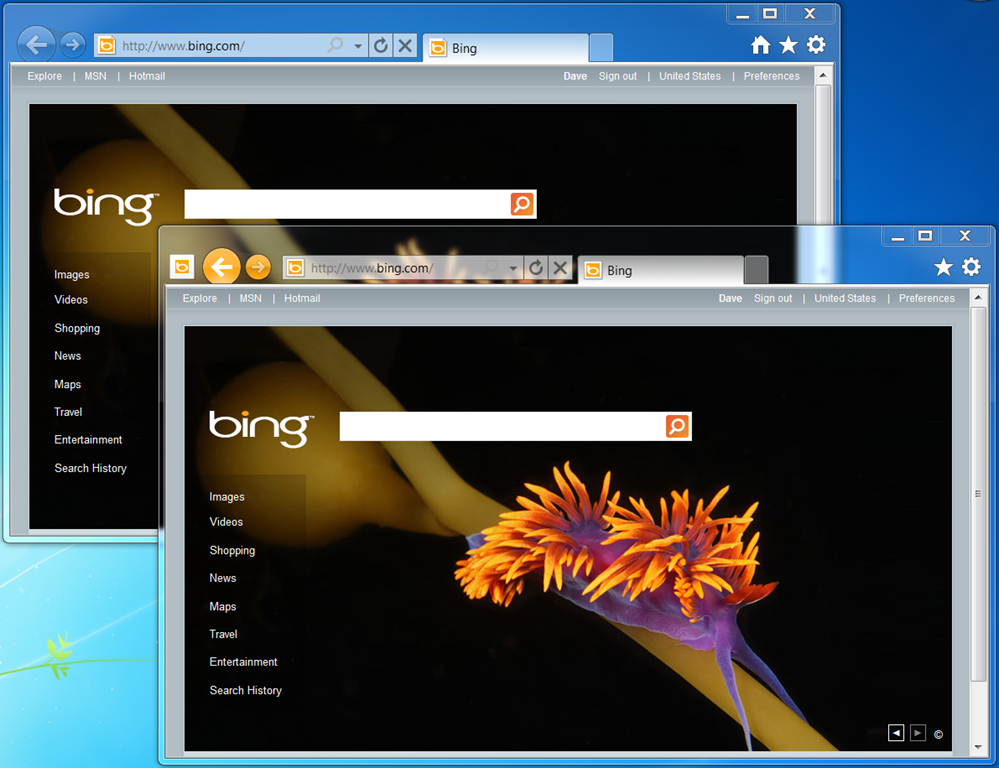
Docked and UndockedPinning a site can also changes some browser elements.  Opening a site through its pinned icon can, depending on the site, change the appearance of some UI elements to follow the site design.  The screenshot to the left shows two IE9 instances both pointed to bing’s home page.  The background instance shows the default browser instance while the foreground shows the site opened through the pinned item.  Notice how the back and forward buttons have been themed in the foreground instance.  Also notice the favicon added to the left of the back and forward buttons.  Clicking the icon will always navigate back to the pinned “Home” page.

Overall, my experiences with the IE9 beta have been positive.  It’s disappointing to see that the tabbed browsing experience is still lagging behind other browsers in some important ways but the inclusion of Aero Snap, pinning, and jump list support are pretty important innovations.  Given the state of the Web and how few sites are actually taking advantage of the more interesting features like HTML5 and hardware acceleration I don’t know if there’s any compelling reason to change my default browser from Chrome to IE9 but time will tell as sites begin adopting those technologies.